
Notes Module
Timestamped session annotations synchronized with all other data streams.
The Notes module allows you to add timestamped annotations during experiment sessions. Notes are synchronized with other data streams and saved to a CSV file for later analysis. Use notes to mark events, observations, or participant comments during your experiments.
Getting Started
- Enable the Notes module — From the Modules menu
- Start a session — From the main logger
- Type your note — In the text field
- Press Enter or click "Post" — To save
User Interface
History Panel
Displays previously entered notes with:
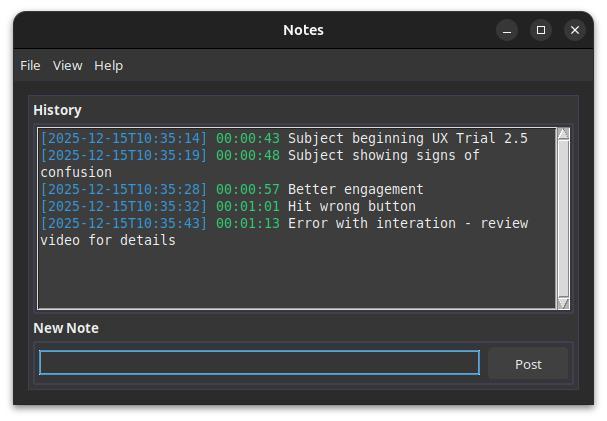
| Element | Description |
|---|---|
| Timestamp | When the note was created (blue text) |
| Elapsed Time | Time since recording started (green text) |
| Module Tags | Which modules were recording (purple tags) |
| Note Content | Your annotation text |
New Note Field
- Type your annotation text in the input field
- Press Enter to submit (Shift+Enter for newline)
- Click "Post" button to save
Recording Notes
Adding a Note
- Type your observation in the text field
- Press Enter or click "Post"
- Note appears in history with timestamp
- Data is immediately saved to file
Note Content Tips
- Keep notes brief and descriptive
- Use consistent terminology across sessions
- Include relevant trial or condition info
- Note unexpected events or errors
Auto-Recording
Notes recording starts automatically when:
- A session is active
- You type and submit a note
Data Output
File Location
{session_dir}/Notes/{timestamp}_NOTES_trial{NNN}.csvExample: 20251208_143022_NOTES_trial001.csv
CSV Columns (8 fields)
| Column | Description |
|---|---|
trial |
Trial number (integer, 1-based) |
module |
Always "Notes" |
device_id |
Always "notes" |
label |
Trial label (may be empty) |
record_time_unix |
Host Unix timestamp (seconds, 6 decimals) |
record_time_mono |
Host monotonic time (seconds, 9 decimals) |
device_time_unix |
Reserved (always empty for Notes) |
content |
Your annotation text (string) |
Example row:
1,Notes,notes,Trial_Label,1733649123.456789,12345.678901234,,Participant started taskTiming and Synchronization
Timestamp Precision
- Unix timestamp with microsecond precision (6 decimal places)
- Monotonic time with nanosecond precision (9 decimal places)
- Recorded at the moment you press Enter/Post
Cross-Module Synchronization
Use record_time_mono to correlate notes with other modules:
- Video frames (via camera
record_time_mono) - Audio samples (via audio
record_time_mono) - DRT trials (via
record_time_mono) - Eye tracking data (via
record_time_mono) - GPS position (via
record_time_mono)
Use record_time_unix for absolute time reference across systems.
Example: Finding video frame for a note
- Read note
record_time_mono(e.g.,12345.678901234) - Search camera timing CSV for nearest
record_time_mono - Use
frame_indexto locate frame in video file
Configuration
| Setting | Description | Default |
|---|---|---|
| History Limit | Maximum notes displayed in history panel | 200 |
| Auto-Start | Automatically begin recording when session starts | Off |
Best Practices
During Experiments
- Note start/end of conditions or trials
- Record participant comments verbatim
- Mark equipment issues or interruptions
- Document environmental changes
For Analysis
- Use consistent note formats across sessions
- Include trial/condition identifiers when relevant
- Timestamp critical events as they happen
- Note anything unusual for later reference
Troubleshooting
Notes not saving
- Verify a session is active
- Check the session directory is writable
- Start session from main logger first
- Review module logs for errors
History not updating
- Notes appear after pressing Enter/Post
- Check that note field is not empty
- Scroll to bottom of history panel
- Restart module if display freezes
"Session required" message
- Start a session from RSLogger first
- Use "Start Session" button before adding notes
Lost notes after crash
- Notes are saved immediately to disk
- Check session directory for CSV file
- Partial data should be recoverable