
Detection Response Task Module
Cognitive workload measurement with millisecond-precision reaction time recording.
The Detection Response Task (DRT) module measures cognitive workload by recording reaction times to stimuli. Participants respond to a stimulus (typically a red LED) by pressing a button as quickly as possible. Degraded reaction times indicate increased cognitive load.
Red Scientific Hardware
Detection Response Task devices are available from Red Scientific. See our Detection Response Task product page for specifications and purchasing information.
Quick Reference
| Reaction time data | reaction_time_ms |
| Miss indicator | -1 |
| Sync with other modules | record_time_mono |
| Valid response window | 100-2500 ms (ISO 17488) |
Getting Started
- Connect your DRT device — USB cable (wired) or XBee dongle (wireless)
- Enable the DRT module — From the Modules menu
- Wait for device detection — Status shows device port
- Start a session — Begin recording reaction times
Stimulus Configurations
| Type | Description | Best For |
|---|---|---|
| TDRT (Tactile) |
Vibrating motor worn on shoulder or collar | Driving studies where visual DRT would distract; participant's vision must stay on primary task |
| HDRT (Head-mounted) |
Red LED on lightweight headband; moves with participant | Tasks with head movement; stimulus stays in peripheral vision |
| RDRT/PDT (Remote/Peripheral) |
Fixed LED mounted on dashboard, A-pillar, or monitor edge | Simulator and workstation setups |
User Interface
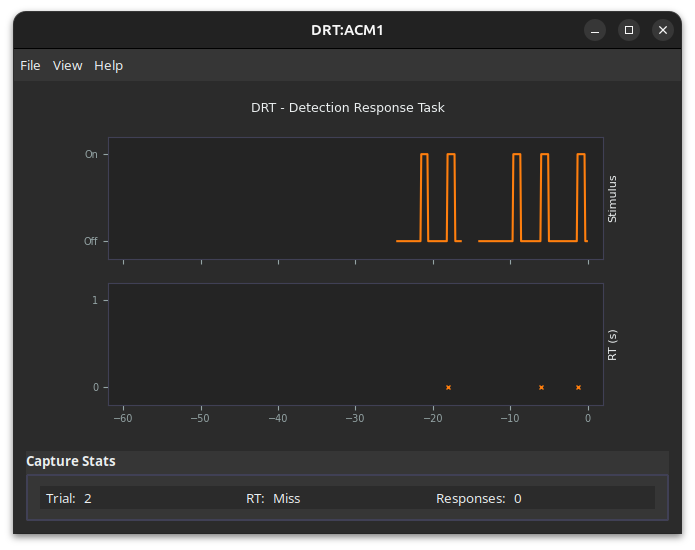
Real-time Chart
- Upper plot — Stimulus state (ON/OFF) over time
- Lower plot — Reaction time bar chart for each trial
During recording, displays a scrolling 60-second window.
Results Panel
| Trial | Current trial number |
| RT | Last reaction time in ms (or "Miss") |
| Responses | Total button press count |
| Battery | Battery level (wDRT only) |
Device Menu
- Stimulus: ON/OFF — Manual stimulus control
- Configure... — Open device configuration
Configuration
Access via Device > Configure.
Timing Parameters
| Parameter | Description | ISO 17488 Default |
|---|---|---|
| Lower ISI | Minimum inter-stimulus interval | 3000 ms |
| Upper ISI | Maximum inter-stimulus interval | 5000 ms |
| Stim Duration | How long stimulus stays on | 1000 ms |
| Intensity | LED brightness (0-100%) | 100% |
Click ISO Defaults to apply standard parameters.
Response Classification (ISO 17488)
| Reaction Time | Classification |
|---|---|
| < 100 ms | Anticipatory — exclude from hit rate |
| 100-2500 ms | Valid hit |
| > 2500 ms or none | Miss (reaction_time_ms = -1) |
Buttons
- Get Config — Read current parameters from device
- Upload — Send new parameters to device
Data Output
File Location
{session_dir}/DRT/{prefix}_DRT_{device_id}.csvCSV Columns
| Column | Description |
|---|---|
trial | Trial number |
module | Always "DRT" |
device_id | Device identifier |
label | Trial label (may be empty) |
record_time_unix | Host timestamp (Unix seconds) |
record_time_mono | Monotonic time for cross-module sync |
device_time_unix | Device timestamp |
device_time_offset | Milliseconds since experiment start |
responses | Button press count for this trial |
reaction_time_ms | Primary data: Response latency (-1 = miss) |
battery_percent | Battery level (wDRT only) |
Understanding reaction_time_ms
The DRT device measures reaction time directly using a hardware timer that starts at stimulus onset and stops at button press. This measurement is independent of your computer and highly accurate.
| Value | Meaning |
|---|---|
| ~250 ms | Typical unloaded response |
| ~400 ms | Moderate cognitive load |
| ~700 ms | High cognitive load |
| -1 | Miss (no response before timeout) |
Misses Are Valid Data
A -1 indicates the participant was too loaded to respond in time. Include misses in your analysis:
- Miss rate — percentage of -1 values
- Hit rate — (Total - Misses) / Total
- RT for hits only — filter out -1 values
Timestamps and Synchronization
| Purpose | Use This Column |
|---|---|
| Reaction time analysis | reaction_time_ms |
| Ordering trials within session | device_time_offset |
| Sync with cameras, eye tracker, VOG, audio | record_time_mono |
Note: Host timestamps (record_time_unix, record_time_mono) reflect when data was logged on your computer, not when the button was pressed. There is typically a 20-50 ms delay, but this does not affect reaction_time_ms accuracy since that is measured entirely on the device.
Device Types
| DRT (USB) | wDRT (Wireless) | |
|---|---|---|
| Connection | USB cable | XBee USB dongle |
| Timing Accuracy | ±5-7 ms | ±1-3 ms |
| Power | USB (no batteries) | Rechargeable battery |
| Multiple Devices | No | Yes (same network) |
| Best For | Fixed workstations, simulators | Mobile participants, in-vehicle studies |
| Port Appears As | COM port (Windows), /dev/tty.* (macOS), /dev/ttyACM* (Linux) |
|
Both devices provide accuracy far exceeding research needs — typical RT variability is 50-200 ms between trials and participants. The small timing difference between devices (~3-5 ms) is negligible for most studies.
Troubleshooting
Device not detected
- Check USB connection (USB DRT) or XBee dongle (wDRT)
- Verify device is powered on; for wDRT, check battery
- Confirm OS recognizes the device:
- Windows: Device Manager > Ports
- macOS: System Information > USB
- Linux:
lsusbor check/dev/ttyACM*
- Try unplugging and reconnecting
No reaction times recorded
- Ensure recording session is active
- Verify stimulus LED is blinking
- Check that button presses register (Responses count increments)
All responses showing as "Miss"
- Check stimulus duration is adequate (>500 ms)
- Test button responsiveness manually
- Check for loose connections
wDRT not connecting
- Verify power switch is ON and battery is charged
- Confirm XBee USB dongle is connected
- Move device closer to dongle (within 30m line-of-sight)
Intermittent USB disconnection
USB cable loosening is the most common cause. Secure both cable and controller box to a rigid backing (clipboard, mounting board) to prevent movement.
If disconnection occurs during recording, data up to that point is saved. Reconnect and start a new session.
Configure button not responding
- Wait for device to fully connect
- Ensure not currently recording